Aktualizacja 26.09.2026: Microsoft wyłączył automatyczną aktywację telefoniczną 3 grudnia 2025 r. (także w Polsce). Jeśli aktywacja online nie działa, użyj Portalu aktywacji produktu Microsoft (aka.ms/aoh): identyfikator instalacji z
slmgr /dti(Windows) lubcscript ospp.vbs /dinstid(Office) wprowadź w portalu, a otrzymany identyfikator potwierdzenia wpisz poleceniemslmgr /atp <ID>lubcscript ospp.vbs /actcid:<ID>.
Zanim zaczniesz
Microsoft SQL Server 2014 Standard 24 Core to serwerowy system baz danych dla środowisk produkcyjnych, aplikacji biznesowych, raportowania i pracy z większą liczbą połączeń niż w modelu Server + CAL. Jeśli planujesz zakup tej edycji, możesz od razu sprawdzić Microsoft SQL Server 2014 Standard 24 Core w KluczeSoft. Wariant 24 Core oznacza licencjonowanie na 24 rdzenie procesora, więc nie dokupujesz osobnych licencji CAL dla użytkowników końcowych korzystających z tej instancji.
Warto pamiętać o dacie cyklu życia produktu. SQL Server 2014 wszedł do sprzedaży 5 czerwca 2014 r., wsparcie podstawowe zakończyło się 9 lipca 2019 r., a wsparcie rozszerzone 9 lipca 2024 r. W praktyce oznacza to, że ta wersja nadal może działać poprawnie w istniejącej infrastrukturze, ale nie jest już standardowo rozwijana ani objęta typowym wsparciem bezpieczeństwa Microsoft poza dodatkowymi programami wyjątków.
W KluczeSoft dostawa odbywa się elektronicznie. Po zakupie klient otrzymuje klucz produktu, dokument zakupu oraz instrukcję instalacji. To licencja cyfrowa, bez fizycznego nośnika. Sama instalacja odbywa się z obrazu ISO lub nośnika instalacyjnego Microsoft, a klucz służy do aktywacji edycji produkcyjnej. Jeśli chcesz wcześniej sprawdzić najważniejsze informacje o tej licencji, zobacz też FAQ Microsoft SQL Server 2014 Standard 24 Core.
Wymagania systemowe
Poniżej praktyczne wymagania dla SQL Server 2014 Standard 24 Core w typowym wdrożeniu x64:
| Element | Wymaganie minimalne | Zalecenie praktyczne |
|---|---|---|
| System operacyjny | Windows Server 2012 / 2012 R2, wybrane środowiska Windows x64 | Windows Server 2012 R2 lub nowszy serwer używany zgodnie z kompatybilnością aplikacji |
| Procesor | x64, 1,4 GHz | 2,0 GHz lub więcej |
| Pamięć RAM | 1 GB | 4 GB lub więcej |
| Miejsce na dysku | 6 GB dla silnika, więcej dla baz i logów | osobne wolumeny dla danych, logów i kopii zapasowych |
| .NET Framework | wymagane składniki instalowane przez setup | aktualny stan systemu i wszystkich składników Windows |
| Sieć | TCP/IP dla połączeń zdalnych | stały port SQL i reguły zapory |
Dla serwera produkcyjnego rekomendowane jest też wydzielenie dysków dla DATA, LOG i BACKUP, włączenie regularnych kopii zapasowych oraz aktualizacja do SQL Server 2014 SP3. Przed wdrożeniem warto też przejrzeć szczegółowe wymagania systemowe Microsoft SQL Server 2014 Standard 24 Core, żeby uniknąć problemów ze zgodnością środowiska.
Pobieranie instalatora
Pełny instalator SQL Server 2014 Standard najczęściej pobiera się z posiadanego źródła licencyjnego Microsoft, z przekazanego obrazu ISO albo z nośnika przygotowanego do wdrożenia. Jeżeli masz już starsze media, po instalacji koniecznie doinstaluj Service Pack 3.
Najbezpieczniejszy scenariusz wygląda tak:
- Pobierz oryginalny obraz instalacyjny SQL Server 2014 Standard x64.
- Skopiuj go lokalnie na serwer, np. do
C:\SQL2014. - Uruchamiaj instalację z lokalnego dysku, nie z udziału sieciowego.
- Po zakończeniu instalacji doinstaluj SP3 oraz najnowszy dostępny pakiet CU dla linii 2014 SP3, jeśli środowisko tego wymaga.
Instalacja krok po kroku
Przygotowanie serwera
Przed instalacją zaloguj się na konto administratora lokalnego, zainstaluj aktualizacje Windows i zrestartuj serwer. Wyłącz także zbędne blokady, które potrafią przerwać instalację, np. wymuszone skanowanie katalogu tymczasowego przez oprogramowanie ochronne.
Uruchomienie instalatora
Otwórz setup.exe i wybierz New SQL Server stand-alone installation or add features to an existing installation. Następnie:
- przejdź weryfikację reguł instalatora,
- zaakceptuj warunki licencji,
- na ekranie klucza wpisz otrzymany klucz produktu,
- wybierz składniki, zwykle
Database Engine Servicesoraz opcjonalnieFull-Text, - ustaw nazwę instancji, najczęściej
MSSQLSERVERdla instancji domyślnej, - wskaż konta usług i tryb uwierzytelniania,
- dodaj administratorów SQL,
- uruchom instalację.
Po zakończeniu sprawdź usługę SQL Server (MSSQLSERVER) w services.msc i wykonaj restart, jeśli instalator o to poprosi.
Aktywacja
Aktywacja w GUI
W SQL Server 2014 aktywacja nie działa przez slmgr.vbs ani ospp.vbs. Klucz produktu wprowadza się w instalatorze albo podczas zmiany edycji.
Jeżeli instalowałeś wersję testową albo chcesz przejść na edycję Standard:
- uruchom
SQL Server Installation Center, - wybierz
Maintenance, - kliknij
Edition Upgrade, - wskaż instancję,
- wpisz klucz produktu,
- zakończ kreator i poczekaj na restart usług.
Jeśli potrzebujesz bardziej szczegółowej procedury, zobacz poradnik Aktywacja SQL Server 2014.
Aktywacja z wiersza polecenia
Dla instancji domyślnej użyj:
setup.exe /Q /ACTION=EditionUpgrade /InstanceName=MSSQLSERVER /PID=XXXXX-XXXXX-XXXXX-XXXXX-XXXXX /IACCEPTSQLSERVERLICENSETERMS
Dla instancji nazwanej, np. ERP, użyj:
setup.exe /Q /ACTION=EditionUpgrade /InstanceName=ERP /PID=XXXXX-XXXXX-XXXXX-XXXXX-XXXXX /IACCEPTSQLSERVERLICENSETERMS
Jeżeli robisz czystą instalację i chcesz od razu podać klucz w trybie cichym:
setup.exe /Q /ACTION=Install /FEATURES=SQLENGINE /INSTANCENAME=MSSQLSERVER /PID=XXXXX-XXXXX-XXXXX-XXXXX-XXXXX /IACCEPTSQLSERVERLICENSETERMS
Aktywacja offline przez Portal aktywacji produktu
Jeżeli walidacja klucza nie przechodzi online albo instalator odrzuca aktywację mimo poprawnego klucza, skontaktuj się ze wsparciem Microsoft przez oficjalną stronę producenta albo z KluczeSoft przez czat na https://kluczesoft.pl/pomoc lub formularz https://kluczesoft.pl/pomoc/zgloszenia/nowe. Przygotuj klucz produktu, informację o edycji oraz nazwę instancji.
Weryfikacja aktywacji
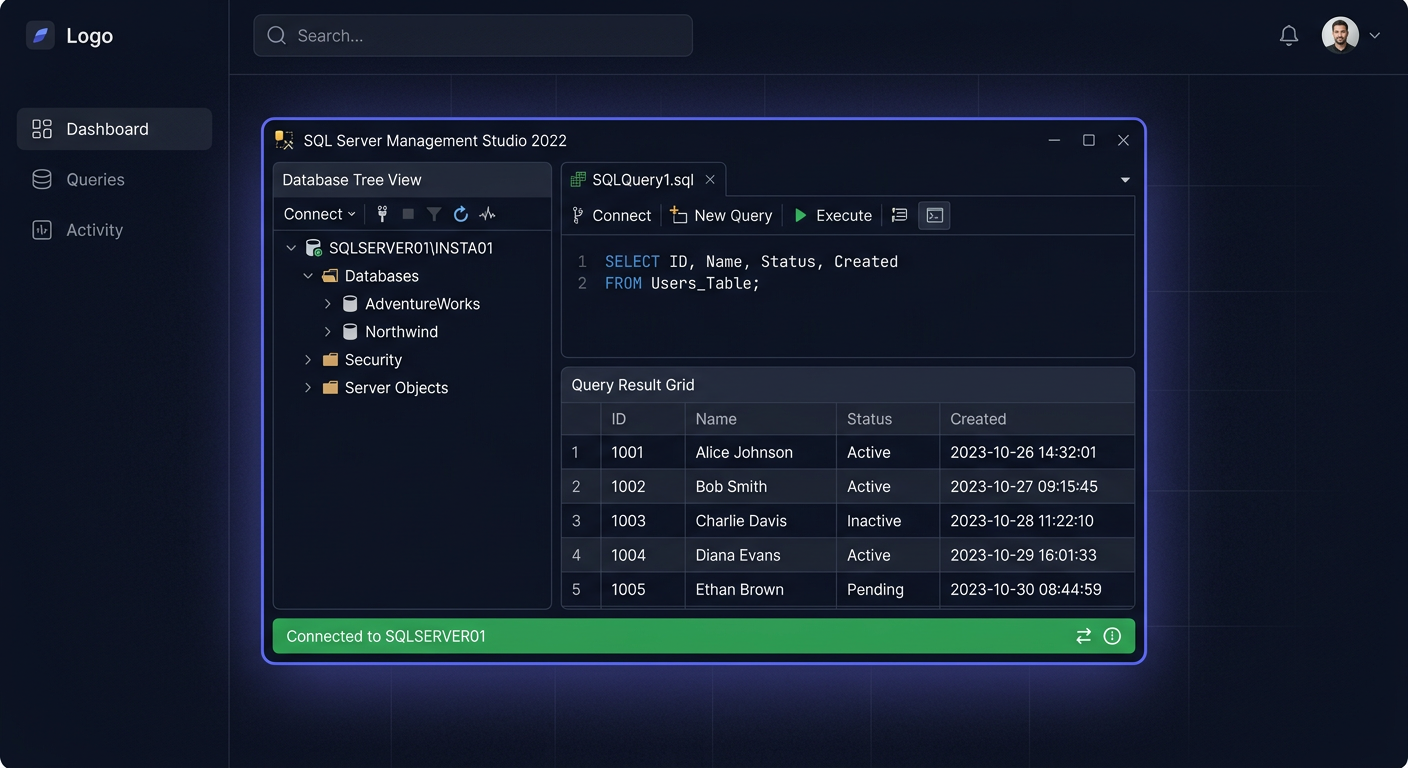
Najprościej sprawdzić stan po zalogowaniu do SSMS:
SELECT
  SERVERPROPERTY('Edition') AS Edition,
  SERVERPROPERTY('ProductVersion') AS ProductVersion,
  SERVERPROPERTY('ProductLevel') AS ProductLevel,
  SERVERPROPERTY('EngineEdition') AS EngineEdition;
Poprawny wynik powinien pokazać edycję Standard Edition oraz wersję zgodną z SQL Server 2014, najlepiej po aktualizacji do SP3. Dodatkowo w Help > About w SSMS sprawdzisz, z jaką instancją jesteś połączony.
Rozwiązywanie problemów
1. Wait on the Database Engine recovery handle failed / 0x851A001A
To jeden z najczęstszych błędów końcowej fazy instalacji. Zwykle oznacza, że silnik nie wystartował po konfiguracji. Sprawdź log ERRORLOG, uprawnienia katalogów danych, zgodność systemu oraz ewentualny problem z nośnikiem.
2. A failure was detected for a previous installation, patch, or repair / 0x84B20001
Na serwerze została niedokończona wcześniejsza instalacja lub aktualizacja. Usuń niedomknięte składniki SQL z Programy i funkcje, uruchom restart i dopiero potem ponów instalację.
3. The cabinet file 'Sql.cab' required for this installation is corrupt
Uszkodzone media instalacyjne. Pobierz instalator ponownie i uruchamiaj go z lokalnego dysku, a nie z pendrive’a lub udziału sieciowego.
4. The ENU localization is not supported by this SQL Server Media
Nie zgadza się język nośnika z wybraną konfiguracją. Użyj zgodnego obrazu instalacyjnego lub uruchom instalację z właściwego pakietu językowego.
5. Could not find the Database Engine startup handle
Silnik nie podniósł się w czasie wymaganym przez setup. Najczęściej pomaga sprawdzenie logów setup, wyłączenie blokujących usług ochronnych oraz uproszczenie ścieżek instalacji.
6. A computer restart is required
Na serwerze czeka nierozliczony restart po wcześniejszej aktualizacji lub sterowniku. Wykonaj pełne ponowne uruchomienie systemu i dopiero wtedy wróć do instalacji SQL.
7. Połączenie zdalne nie działa mimo poprawnej instalacji
Najczęściej problemem jest zapora lub wyłączony protokół TCP/IP. Włącz TCP/IP w SQL Server Configuration Manager, ustaw port, zwykle 1433, i dodaj odpowiednią regułę w firewallu. Jeżeli poza problemami z SQL rozwiązujesz też typowe błędy aktywacji i uprawnień w systemie Windows, pomocny może być opis błędu 0x80070005.
Porównanie wersji
| Wersja | Model | Zastosowanie |
|---|---|---|
| SQL Server 2014 Standard 24 Core | Per Core | starsze aplikacje, środowiska legacy |
| SQL Server 2016 Standard 24 Core | Per Core | lepsza zgodność z nowszym Windows Server |
| SQL Server 2017 Standard 24 Core | Per Core | nowszy silnik i dłuższy cykl życia |
| SQL Server 2019 Standard 24 Core | Per Core | dobry balans ceny i aktualności |
| <a href="https://kluczesoft.pl/sql-server-2022/microsoft-sql-server-2022-standard-16-core">SQL Server 2022 Standard</a> 24 Core | Per Core | najnowsza wersja, najwyższe bezpieczeństwo |
Jeżeli wdrażasz nowy system, nowsze wersje są zwykle bezpieczniejszym wyborem. SQL Server 2014 Standard 24 Core ma sens głównie wtedy, gdy musisz utrzymać kompatybilność z istniejącą aplikacją. Jeśli chcesz porównać dostępne edycje przed zakupem, sprawdź wszystkie wersje SQL Server w sklepie albo wybierz nowszą edycję, taką jak Microsoft SQL Server 2019 Standard 24 Core w KluczeSoft.
Podsumowanie
Microsoft SQL Server 2014 Standard 24 Core to nadal użyteczna platforma bazodanowa dla środowisk, które wymagają zgodności z istniejącym oprogramowaniem i licencjonowania per core bez CAL. Trzeba jednak uwzględnić fakt, że standardowe wsparcie produktu zakończyło się 9 lipca 2024 r., dlatego przed wdrożeniem warto ocenić ryzyko bezpieczeństwa i plan przyszłej migracji.
Jeżeli chcesz od razu przejść do zakupu, sprawdź Microsoft SQL Server 2014 Standard 24 Core w KluczeSoft. W przypadku pytań o licencję, aktywację lub dokument sprzedaży pomocne będą także FAQ Microsoft SQL Server 2014 Standard 24 Core, poradnik Jak otrzymać fakturę VAT za zakup klucza licencyjnego w KluczeSoft oraz formularz Wyślij zgłoszenie.
Jeżeli potrzebujesz pomocy z doborem wersji, instalacją, zmianą edycji albo aktywacją offline przez Portal aktywacji produktu, skorzystaj z oficjalnej strony pomocy Microsoft, a przy zakupie i doborze licencji kontaktuj się bezpośrednio z KluczeSoft.
Gdzie kupić oryginalny klucz
Potrzebujesz legalnego klucza? Sprawdź oferty w sklepie kluczesoft.pl:
Wszystkie klucze są fabrycznie nowe, dostarczane elektronicznie z fakturą VAT.
<!-- IL-V1 -->Powiązane artykuły
- Jak zainstalować i aktywować Microsoft SQL Server 2016 Standard — kompletna instrukcja — Najtańszy SQL Server: 989 zł.
- Jak zainstalować i aktywować Microsoft SQL Server 2017 Standard — kompletna instrukcja — Jak zainstalować SQL Server 2017 Standard.
- Jak zainstalować i aktywować Microsoft SQL Server 2019 Standard — kompletna instrukcja — Jak zainstalować SQL Server 2019 Standard 24 Core.
- Jak zainstalować i aktywować Microsoft SQL Server 2022 Standard — kompletna instrukcja — Jak zainstalować SQL Server 2022 Standard.
- Jak zainstalować Windows Server 2025 Standard — kompletna instrukcja — Instalacja Windows Server 2025 Standard.
Powiązane produkty
- Zobacz wszystkie microsoft sql server 2014 — pełna oferta w kategorii