Jak zainstalować Microsoft Windows 10 Professional — kompletna instrukcja (edycja 2026)
Aktualizacja 26.09.2026: Microsoft wyłączył automatyczną aktywację telefoniczną 3 grudnia 2025 r. (także w Polsce). Jeśli aktywacja online nie działa, użyj Portalu aktywacji produktu Microsoft (aka.ms/aoh): identyfikator instalacji z
slmgr /dti(Windows) lubcscript ospp.vbs /dinstid(Office) wprowadź w portalu, a otrzymany identyfikator potwierdzenia wpisz poleceniemslmgr /atp <ID>lubcscript ospp.vbs /actcid:<ID>.
Ważne: Wsparcie Microsoft dla Windows 10 zakończyło się 14 października 2025 r. System nadal działa, ale nie otrzymuje już bezpłatnych aktualizacji zabezpieczeń — chyba że wykupisz Extended Security Updates (ESU) lub spełnisz warunki darmowego przedłużenia.
Dlaczego w 2026 roku wciąż warto instalować Windows 10 Pro?
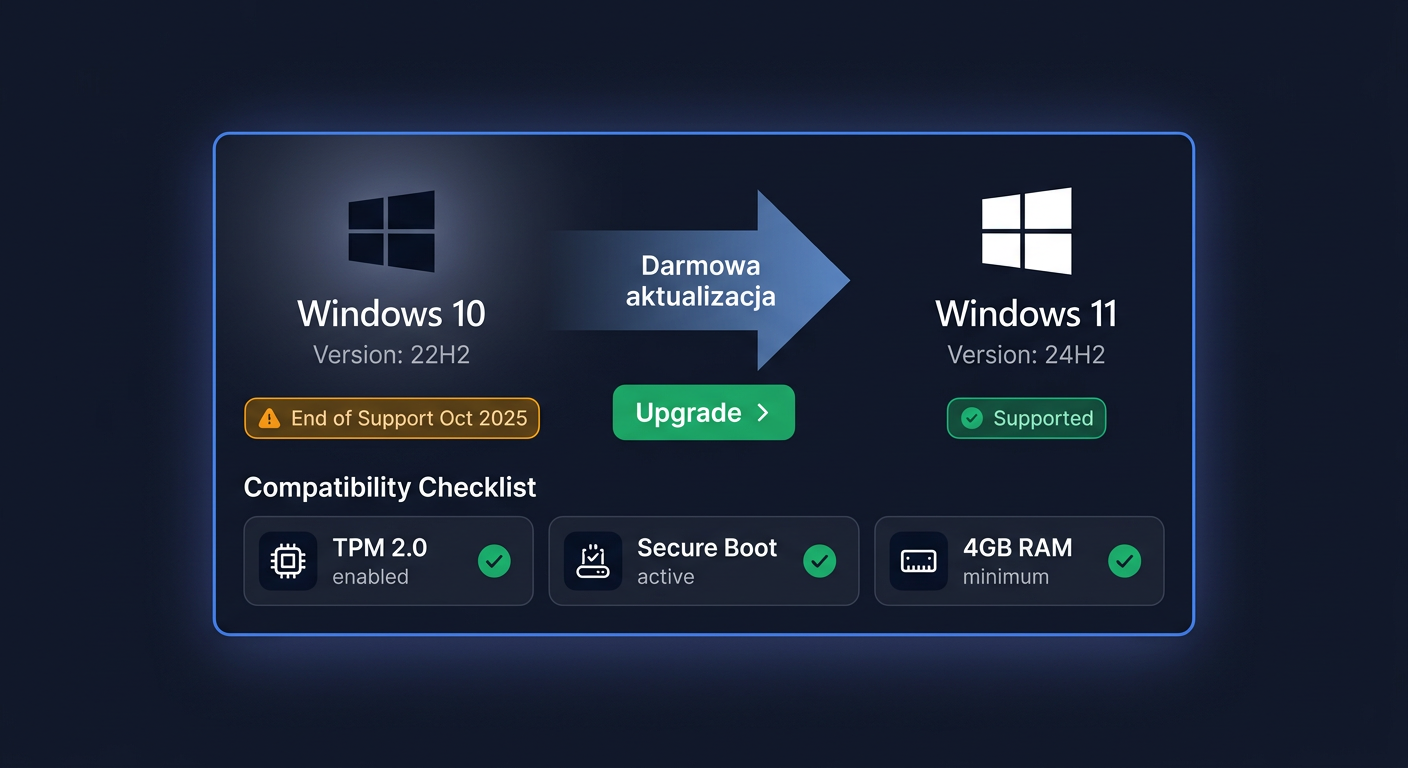
Windows 11 24H2 (najnowsza kompilacja z 2025/2026) przynosi wiele nowości: odświeżony interfejs, lepszą integrację z Microsoft 365, wsparcie dla Copilot+ PC i zaawansowane funkcje AI. Ale nie każdy komputer spełnia jego wymagania — konieczność posiadania TPM 2.0 i Secure Boot eliminuje miliony sprawnych maszyn. Windows 10 Pro pozostaje jedynym rozsądnym wyborem dla starszego sprzętu, a jednocześnie oferuje funkcje, których brakuje w edycji Home: BitLocker, Pulpit zdalny, Hyper-V, zasady grupy czy możliwość dołączenia do domeny.
Co więcej — klucz Windows 10 Pro aktywuje również Windows 11 Pro. Jeśli więc dziś instalujesz „dziesiątkę”, a jutro przesiądziesz się na nowy komputer z Windows 11, nie musisz kupować drugiego klucza.
Zanim przejdziemy do instalacji krok po kroku, zapoznaj się z wymaganiami sprzętowymi i różnicami między wersjami systemu.
Zanim zaczniesz
Wymagania systemowe Windows 10
| Komponent | Minimum | Zalecane |
|---|---|---|
| Procesor | 1 GHz lub szybszy | 2 GHz+ |
| RAM | 2 GB (64-bit) | 4–8 GB |
| Dysk | 20 GB wolnego | 128 GB SSD |
| Grafika | DirectX 9, WDDM 1.0 | — |
| Ekran | 800 × 600 | 1920 × 1080 |
Przewaga Win 10 nad Win 11 24H2: Znacznie niższe wymagania. Windows 11 24H2 wymaga procesora Intel 8. generacji / AMD Ryzen 2000 lub nowszego, TPM 2.0, Secure Boot i co najmniej 4 GB RAM. Windows 10 Pro działa nawet na 15-letnich laptopach — bez TPM, bez ograniczeń sprzętowych.
Windows 10 a Microsoft 365 i Office 2024
Windows 10 w pełni współpracuje z najnowszym pakietem Microsoft 365 (dawniej Office 365) oraz z Office 2024 — zarówno w wersji perpetual (jednorazowy zakup), jak i subskrypcyjnej. Aplikacje takie jak Word, Excel, PowerPoint i Outlook otrzymują comiesięczne aktualizacje również na Windows 10, a integracja z OneDrive i Teams działa bez zastrzeżeń. Jeśli korzystasz z firmowej subskrypcji Microsoft 365 Business Premium, Windows 10 Pro pozwoli Ci w pełni wykorzystać zasady grupy, Intune i Azure AD Join.
Krok 1: Pobierz obraz ISO Windows 10
Z e-maila od KluczeSoft
Po zakupie klucza otrzymasz e-mail z linkiem do pobrania pliku ISO. Link jest aktywny przez 30 dni — zapisz plik na dysku od razu po zakupie.
Ze strony Microsoft
- Wejdź na microsoft.com/software-download/windows10
- Pobierz Media Creation Tool
- Uruchom → Utwórz nośnik instalacyjny → wybierz:
- Język: Polski
- Edycja: Windows 10
- Architektura: 64-bit
- Wybierz Plik ISO → wskaż folder zapisu
Uwaga — stan na 2026 rok: Microsoft stopniowo wygasza oficjalną stronę pobierania Windows 10. Jeśli link nie działa, użyj linku z e-maila KluczeSoft lub pobierz obraz z oficjalnego archiwum Microsoft (wymaga subskrypcji Visual Studio). Alternatywnie napisz na kontakt@kluczesoft.pl — wyślemy Ci działający link.
Krok 2: Utwórz bootowalny pendrive USB
Potrzebujesz pendrive'a o pojemności minimum 8 GB. Wszystkie dane na nim zostaną bezpowrotnie usunięte.
Rufus (zalecana metoda)
- Pobierz Rufus z oficjalnej strony rufus.ie (narzędzie jest darmowe i open-source)
- Podłącz pendrive do komputera i uruchom Rufus
- Kliknij WYBIERZ i wskaż pobrany wcześniej plik ISO
- Schemat partycji:
- GPT — dla komputerów z UEFI (większość modeli po 2012 roku)
- MBR — dla starszych komputerów z tradycyjnym BIOS-em
- System plików: NTFS (dla obrazów >4 GB) lub FAT32
- Kliknij START → potwierdź → odczekaj 5–15 minut
Media Creation Tool (alternatywa)
- Uruchom pobrane wcześniej MCT
- Wybierz Utwórz nośnik instalacyjny dla innego komputera
- Wskaż Dysk flash USB i wybierz swój pendrive z listy
- Narzędzie automatycznie pobierze system i nagra go na pendrive — nie musisz mieć wcześniej pliku ISO
Ventoy — zaawansowana alternatywa
Jeśli często instalujesz różne systemy, rozważ Ventoy (ventoy.net). Po jednorazowym przygotowaniu pendrive'a wystarczy skopiować pliki ISO na partycję — przy każdym uruchomieniu wybierasz, który obraz chcesz zainstalować. Świetne rozwiązanie dla serwisantów i administratorów IT.
Krok 3: Uruchom komputer z pendrive'a
- Podłącz przygotowany pendrive do komputera
- Uruchom ponownie komputer i natychmiast zacznij naciskać klawisz Boot Menu — zanim pojawi się logo Windows
| Producent | Boot Menu | BIOS/UEFI Setup |
|---|---|---|
| Dell | F12 | F2 |
| HP | F9 | F10 / ESC |
| Lenovo | F12 (lub przycisk Novo) | F2 / Fn+F2 |
| ASUS | F8 / ESC | Del / F2 |
| Acer | F12 | F2 / Del |
| MSI | F11 | Del |
| Gigabyte | F12 | Del |
| Samsung | F10 / ESC | F2 |
- Z listy urządzeń wybierz pendrive — najczęściej oznaczony jako „UEFI: (nazwa pendrive'a)" dla GPT lub „USB HDD:" dla MBR
- Jeśli widzisz komunikat „Press any key to boot from USB" — natychmiast naciśnij dowolny klawisz
Krok 4: Zainstaluj Windows 10
- Na ekranie powitalnym wybierz:
- Język do zainstalowania: Polski
- Format czasu i waluty: Polski (Polska)
- Klawiatura: Polski (programisty)
- Kliknij Dalej, a następnie Zainstaluj teraz
- Gdy instalator zapyta o klucz produktu, kliknij Nie mam klucza produktu — aktywujesz system później, po zakończeniu instalacji
- Wybierz edycję: Windows 10 Pro (nie Home, nie Education — Pro)
- Zaakceptuj warunki licencji → zaznacz pole → Dalej
- Wybierz opcję Niestandardowa: zainstaluj tylko system Windows (zaawansowane)
- Zobaczysz listę dostępnych partycji:
- Jeśli instalujesz na czystym dysku — usuń wszystkie istniejące partycje (oprócz tych z danymi, które chcesz zachować), zaznacz nieprzydzielone miejsce i kliknij Dalej — instalator sam utworzy wymagane partycje
- Jeśli instalujesz obok istniejącego systemu — wybierz partycję z wystarczającą ilością wolnego miejsca
- Instalacja potrwa 15–30 minut. Komputer uruchomi się ponownie kilka razy — nie wyjmuj pendrive'a przed zakończeniem całego procesu
- Konfiguracja wstępna:
- Kraj/region: Polska → Tak
- Układ klawiatury: Polski (programisty) → Tak
- Drugi układ: Pomiń
- Sieć: możesz pominąć (Windows 10 Pro nie wymaga konta Microsoft)
- Konto: wybierz Konto offline (lewy dolny róg ekranu, czasem opisane jako „Ograniczone możliwości")
- Nazwa użytkownika: wpisz preferowaną nazwę (np. „Jan")
- Hasło: ustaw silne hasło i pytania zabezpieczające
- Preferencje prywatności: przejrzyj i dostosuj według uznania
Zaleta Pro vs Home: Windows 10 Pro pozwala na łatwe utworzenie konta lokalnego bez konta Microsoft — wystarczy wybrać „Konto offline" podczas konfiguracji. W Windows 10/11 Home ta opcja jest często ukryta lub nieobecna bez odłączenia kabla sieciowego.
Krok 5: Aktywuj system kluczem od KluczeSoft
Po zakończeniu instalacji i zalogowaniu do systemu przejdź do aktywacji. Wybierz jedną z trzech metod:
Metoda 1: Przez Ustawienia (najłatwiejsza)
- Naciśnij Win + I, aby otworzyć Ustawienia
- Przejdź do Aktualizacja i zabezpieczenia → Aktywacja
- Kliknij Zmień klucz produktu
- Wpisz 25-znakowy klucz otrzymany od KluczeSoft (format: XXXXX-XXXXX-XXXXX-XXXXX-XXXXX)
- Kliknij Dalej → Aktywuj
- Jeśli serwer Microsoft zaakceptuje klucz, zobaczysz komunikat „System Windows został aktywowany"
Metoda 2: Przez CMD (wiersz poleceń)
- Otwórz Wiersz polecenia jako administrator (kliknij Start prawym przyciskiem → Wiersz polecenia (Administrator))
- Wpisz kolejno, zatwierdzając Enter po każdej linijce:
slmgr /ipk XXXXX-XXXXX-XXXXX-XXXXX-XXXXX slmgr /ato - Pierwsze polecenie instaluje klucz, drugie wymusza aktywację online
Metoda 3: Aktywacja offline przez Portal aktywacji produktu (gdy serwer nie odpowiada)
- W CMD (jako administrator) wpisz:
slmgr /dti - Zapisz wyświetlony 63-cyfrowy numer instalacji
- Otwórz wiersz poleceń jako administrator i wpisz
slmgr /dti— zapisz wyświetlony identyfikator instalacji. - Na dowolnym urządzeniu z internetem otwórz Portal aktywacji produktu Microsoft (aka.ms/aoh) i wprowadź ten identyfikator (aktywację telefoniczną Microsoft wyłączył 3 grudnia 2025 r.).
- Otrzymany identyfikator potwierdzenia wpisz poleceniem
slmgr /atp <ID>. - Sprawdź stan aktywacji poleceniem
slmgr /xprlub w Ustawienia → System → Aktywacja.slmgr /atp IDENTYFIKATOR-POTWIERDZENIA
Sprawdzenie statusu aktywacji
W dowolnym momencie możesz sprawdzić stan aktywacji:
- W Ustawieniach (Win + I → Aktualizacja → Aktywacja)
- W CMD:
slmgr /xpr— wyświetli datę wygaśnięcia (dla kluczy permanentnych: „Komputer jest trwale aktywowany")
Krok 6: Po instalacji — co musisz zrobić
Po udanej aktywacji poświęć 15 minut na doprowadzenie systemu do pełnej funkcjonalności:
1. Windows Update
Otwórz Ustawienia → Aktualizacja i zabezpieczenia → Windows Update i kliknij Sprawdź aktualizacje. Proces może potrwać 30–60 minut i wymagać kilku ponownych uruchomień — to normalne. System pobierze wszystkie poprawki wydane do października 2025 oraz ewentualne poprawki ESU, jeśli kwalifikujesz się do darmowego przedłużenia.
2. Sterowniki
Otwórz Menedżer urządzeń (kliknij prawym przyciskiem Start → Menedżer urządzeń). Szukaj urządzeń oznaczonych żółtym trójkątem z wykrzyknikiem — to komponenty bez zainstalowanych sterowników. Pobierz sterowniki z oficjalnej strony producenta komputera (Dell, HP, Lenovo itp.), a nie z agregatorów pokroju DriverPack — te często instalują nieaktualne lub błędne wersje.
3. Windows Defender + Antywirus
Windows 10 Pro ma wbudowany Windows Defender (obecnie Microsoft Defender Antivirus), który w testach AV-Comparatives i AV-Test regularnie uzyskuje wyniki na poziomie komercyjnych antywirusów. Po instalacji upewnij się, że ochrona w czasie rzeczywistym jest włączona: Ustawienia → Zabezpieczenia Windows → Ochrona przed wirusami i zagrożeniami.
4. BitLocker (szyfrowanie dysku)
Windows 10 Pro obsługuje pełne szyfrowanie dysku przez BitLocker — niedostępne w edycji Home. Aby włączyć:
- Przejdź do Panel sterowania → System i zabezpieczenia → Szyfrowanie dysków funkcją BitLocker
- Kliknij Włącz funkcję BitLocker przy dysku C: i postępuj zgodnie z kreatorem
- Zapisz klucz odzyskiwania na zewnętrznym nośniku lub na koncie Microsoft
5. Microsoft 365 i Office 2024
Jeśli używasz Microsoft 365 (subskrypcja) lub Office 2024 (licencja wieczysta), pobierz instalator z office.com i zaloguj się na swoje konto. Aplikacje będą otrzymywać aktualizacje zabezpieczeń i funkcji, nawet jeśli sam Windows 10 już ich nie dostaje.
Koniec wsparcia Windows 10 — co dalej w 2026 roku?
Windows 10 utracił bezpłatne wsparcie 14 października 2025 r. W 2026 roku sytuacja wygląda następująco:
| Opcja | Koszt | Stan na 2026 | Opis |
|---|---|---|---|
| Uaktualnij do Windows 11 24H2 | Bezpłatne (jeśli sprzęt spełnia wymagania) | Windows 11 24H2 to najnowsza wersja, wspierana do 2027+ | Pobierz Asystenta instalacji ze strony Microsoft. Twoje pliki i aplikacje przejdą bez strat |
| ESU (Extended Security Updates) — płatny | $30 za pierwszy rok (do X 2026), $60 za kolejny | Drugi rok wsparcia ESU potwierdzony przez Microsoft | Krytyczne poprawki bezpieczeństwa bez nowych funkcji. Dla konsumentów — jednorazowa opłata |
| ESU — darmowy | $0 | Program aktywny w 2026 | Aktywuj Windows Backup z synchronizacją OneDrive — Microsoft przyznaje rok ESU gratis |
| Korzystaj bez aktualizacji | $0 | Rosnące ryzyko codziennie | System działa, ale każda nowa luka w zabezpieczeniach pozostaje niezałatana |
| Kup komputer z Windows 11 24H2 | 2000–5000+ zł | Zalecane dla biznesu | Dla sprzętu niespełniającego wymagań Win 11 — jedyne długoterminowe rozwiązanie |
| Linux (alternatywnie) | $0 | Linux Mint 22, Ubuntu 24.04 LTS | Darmowe, bezpieczne, wspierane do 2029+. Działa idealnie na starszym sprzęcie |
Klucz Windows 10 Pro od KluczeSoft aktywuje również Windows 11 Pro — kupując dziś klucz do „dziesiątki", zyskujesz prawo do bezpłatnego uaktualnienia do Windows 11 w przyszłości. Nie musisz kupować drugiego klucza.
Czy Windows 10 jest bezpieczny w 2026 roku?
To zależy od scenariusza. Jeśli korzystasz z ESU (płatnego lub darmowego) — otrzymujesz krytyczne poprawki bezpieczeństwa, więc poziom ryzyka jest akceptowalny dla użytkowników domowych. Bez ESU każda kolejna luka typu zero-day w protokołach sieciowych, przeglądarce Edge WebView2 czy jądrze NT pozostaje otwarta. Firmy i instytucje publiczne nie powinny używać Windows 10 bez ESU po październiku 2025.
Windows 10 Pro — co zawiera? Porównanie z Windows 11 24H2 Pro i Home
| Funkcja | Windows 10 Home | Windows 10 Pro | Windows 11 24H2 Pro |
|---|---|---|---|
| BitLocker | ✗ | ✓ | ✓ |
| Pulpit zdalny (host) | ✗ | ✓ | ✓ |
| Hyper-V | ✗ | ✓ | ✓ |
| Zasady grupy | ✗ | ✓ | ✓ |
| Domena / Azure AD Join | ✗ | ✓ | ✓ |
| Konto lokalne | Utrudnione | Łatwe | Utrudnione |
| Maks. RAM | 128 GB | 2 TB | 2 TB |
| TPM 2.0 wymagane | Nie | Nie | Tak |
| Copilot+ AI | ✗ | ✗ | ✓ (na zgodnym sprzęcie) |
| Wsparcie do | X 2025 | X 2025 (ESU do X 2027) | 2027+ |
Jak widać, Windows 10 Pro oferuje niemal identyczny zestaw funkcji co Windows 11 24H2 Pro — poza nowościami interfejsowymi i Copilot+ AI. Jeśli nie zależy Ci na sztucznej inteligencji w systemie i masz sprzęt bez TPM 2.0, Windows 10 Pro pozostaje w pełni wartościowym wyborem — szczególnie z ESU.
Rozwiązywanie problemów
Kod błędu 0xC004F074 — serwer aktywacji nieosiągalny
Najczęstszy błąd podczas aktywacji. Oznacza, że serwer KMS Microsoft nie odpowiada.
- Sprawdź połączenie internetowe (ping 8.8.8.8)
- Wyłącz VPN, proxy, firewalle firmowe
- Spróbuj ponownie:
slmgr /ato - Jeśli problem się powtarza — skorzystaj z aktywacji offline przez Portal aktywacji produktu (metoda 3 w Kroku 5)
Kod błędu 0xC004F050 — klucz nie pasuje do zainstalowanej edycji
Zainstalowałeś Windows 10 Home, a próbujesz aktywować kluczem Pro.
- Sprawdź edycję: Ustawienia → System → Informacje → Specyfikacja systemu Windows → Edycja
- Jeśli widzisz „Windows 10 Home", musisz przeprowadzić uaktualnienie do Pro: Ustawienia → Aktualizacja → Aktywacja → Zmień klucz produktu → wpisz klucz Pro. System automatycznie doda funkcje Pro
Klucz został użyty zbyt wiele razy (limit aktywacji)
Klucze detaliczne mają określony limit aktywacji (zazwyczaj 1–3). Jeśli przekroczyłeś limit:
- Napisz na kontakt@kluczesoft.pl, podając numer zamówienia
- Wymienimy klucz na nowy w ramach gwarancji
Instalator nie wykrywa dysku
Zdarza się na nowoczesnych laptopach z Intel RST lub kontrolerem NVMe:
- Wejdź do BIOS/UEFI i zmień tryb kontrolera SATA z RAID na AHCI
- Pobierz sterowniki z innego komputera i podczas instalacji kliknij Załaduj sterownik na ekranie wyboru partycji
„Ten komputer nie może uruchomić systemu Windows 11" przy próbie uaktualnienia
Komunikat pojawia się przy próbie instalacji Windows 11 na nieobsługiwanym sprzęcie. Dwa wyjścia:
- Zostań na Windows 10 Pro z ESU — to legalne i bezpieczne
- Wymuś instalację Windows 11 przez modyfikację rejestru (niezalecane — Microsoft może blokować aktualizacje na nieobsługiwanym sprzęcie)
Częste pytania
Czy mogę legalnie zainstalować Windows 10 Pro w 2026 roku?
Tak. Microsoft nie zabrania instalacji Windows 10 — zakończył jedynie bezpłatne wsparcie techniczne i aktualizacje zabezpieczeń. System instaluje się, aktywuje i działa dokładnie tak samo jak przed 14 października 2025. Klucze detaliczne pozostają ważne bezterminowo.
Czy mój klucz Windows 10 Pro przejdzie na Windows 11?
Tak — wszystkie klucze Windows 10 Pro aktywują Windows 11 Pro bez dodatkowych opłat. Microsoft honoruje ścieżkę bezpłatnego uaktualnienia od 2015 roku i nie zapowiedział jej wycofania.
Czy Windows 10 Pro współpracuje z Microsoft 365 i Office 2024?
W pełni. Zarówno subskrypcyjny Microsoft 365, jak i wieczysty Office 2024 działają na Windows 10 bez żadnych ograniczeń. Otrzymują też własne, niezależne aktualizacje zabezpieczeń — fakt zakończenia wsparcia dla systemu nie wpływa na aplikacje Office'a.
Czy potrzebuję TPM 2.0 do Windows 10 Pro?
Nie. TPM 2.0 jest wymagany tylko przez Windows 11. Windows 10 Pro działa bez TPM, bez Secure Boot i na praktycznie każdym procesorze x64 wydanym po 2006 roku.
Co się stanie, jeśli nie aktywuję Windows 10?
System będzie działał, ale z ograniczeniami: znak wodny „Aktywuj system Windows" w prawym dolnym rogu ekranu, zablokowana personalizacja (tapeta, kolory, motywy) i okresowe przypomnienia. Wszystkie funkcje Pro — BitLocker, Hyper-V, domena — pozostają dostępne nawet bez aktywacji.
Czy mogę przełożyć klucz z Windows 10 Pro na Windows 11 Pro na tym samym komputerze?
Tak. Instalujesz Windows 10 Pro, aktywujesz kluczem, a następnie uruchamiasz Asystenta instalacji Windows 11. System uaktualni się, zachowując aktywację. Klucz „przepnie się" na Windows 11 automatycznie.
Czy warto kupować Windows 10 Pro, jeśli planuję niedługo wymienić komputer?
Tak — klucz jest przypisany do licencji, nie do sprzętu. Jeśli kupujesz klucz detaliczny (Retail), możesz go przenieść na nowy komputer. W przypadku problemów z aktywacją na nowym sprzęcie napisz na kontakt@kluczesoft.pl — wymienimy klucz.
Gdzie kupić legalny i tani klucz Windows 10 Pro w 2026 roku?
Legalne klucze detaliczne w przystępnej cenie znajdziesz na kluczesoft.pl/klucz-windows-10. Każdy klucz objęty jest gwarancją — w razie problemów otrzymasz nowy klucz lub zwrot pieniędzy. Dostawa na e-mail w 1–3 min po zakupie.
<!-- IL-V1 -->Powiązane artykuły
- Jak zainstalować Microsoft Office 2016 Professional — kompletna instrukcja — Office 2016 Professional — Word, Excel, PPT, Outlook, Access, Publisher.
- Jak zainstalować Microsoft Office 2024 Professional Plus — kompletna instrukcja — Jak zainstalować Microsoft Office 2024 Professional Plus?.
- Jak zainstalować Microsoft Project 2024 Professional — kompletna instrukcja — Project 2024 Professional — Gantt, zasoby, Project Server.
- Jak zainstalować Microsoft Visio 2024 Professional — kompletna instrukcja — Visio 2024 Professional — diagramy, UML, BPMN, dane na żywo.
- Jak zainstalować Microsoft Windows 10 Enterprise — kompletna instrukcja — Instalacja Windows 10 Enterprise — funkcje korporacyjne, LTSC, brak TPM.
Powiązane produkty
- Windows 10 Pro klucz licencyjny — sprawdź dostępność i cenę w naszym sklepie
- Zobacz wszystkie windows 10 — pełna oferta w kategorii